JZON FABRICATIONS · ASSEMBLY GUIDE

3x GPU AI, Crypto Mining Workbench

A clear, visual guide for assembling the frame and installing the primary PC components of the 3x GPU AI, Crypto Mining Workbench.

INCLUDED HARDWARE

35x M3 Screws
4x 6-32 PSU screws
1x Power buttons

REQUIRED TOOL

PH1 screwdriver

Use a clean, flat work surface.

TIME & DIFFICULTY

10–20 minutes

Easy

PARTS OVERVIEW

Identify the main components

Lay out the frame sections, motherboard tray, support arms and brackets before starting.

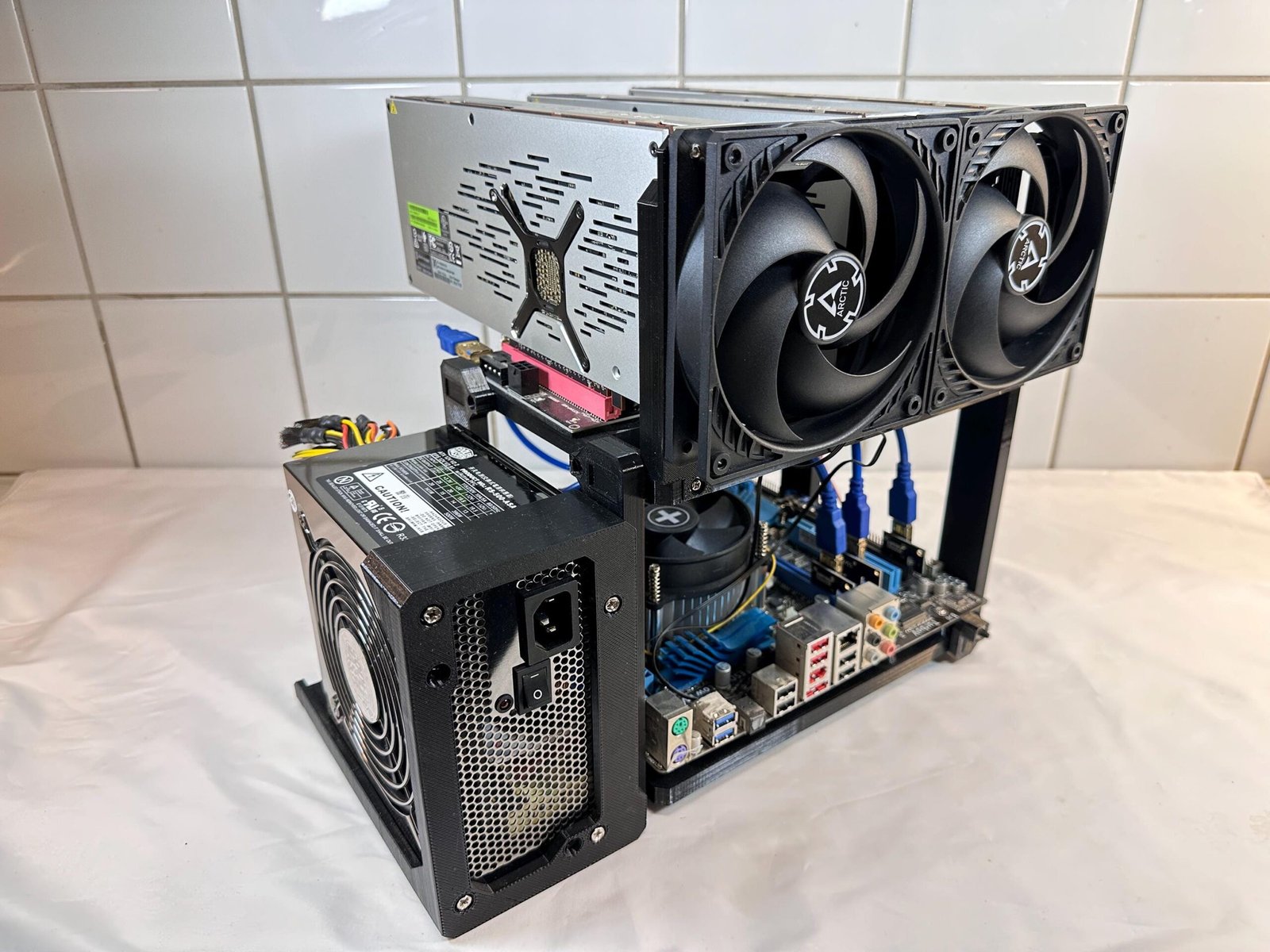
This product is comprised of 11x main components:

  • 2x Motherboard shelf parts
  • 2x GPU shelf parts
  • 4x Side legs
  • 1x PSU mount
  • 1x Power switch holder
  • 1x SSD mount

1

STEP 1

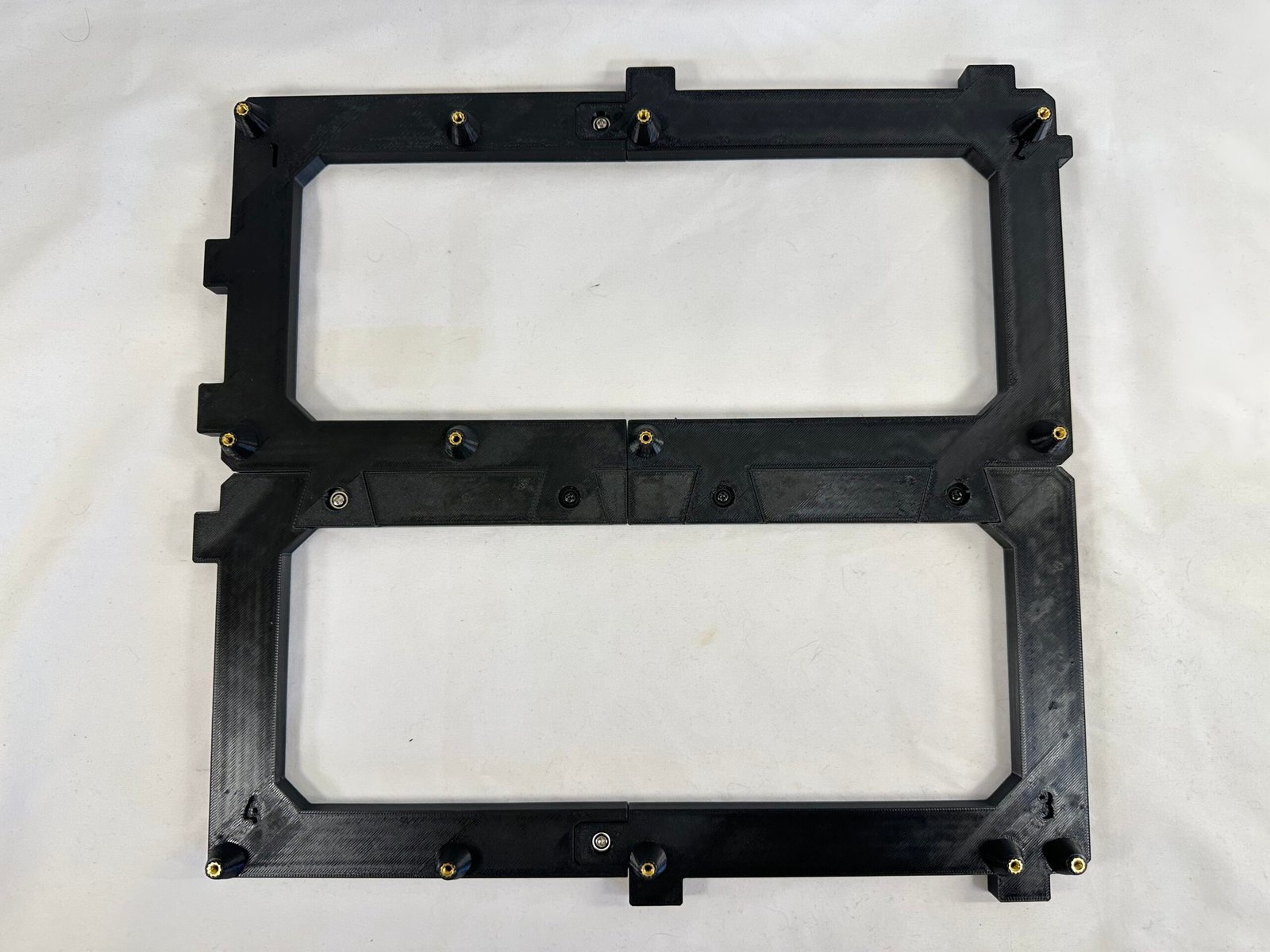
Assemble motherboard shelf

Instructions

Hardware used

2× M3 screws

Tip

The 3-4 triangles on one panel should fit well in the sockets of the other panel.

2

STEP 2

Install the side legs & PSU mount

il_fullxfull.7701890242_pa9o.jpg
il_fullxfull.7701890238_b9ao.jpg

Instructions

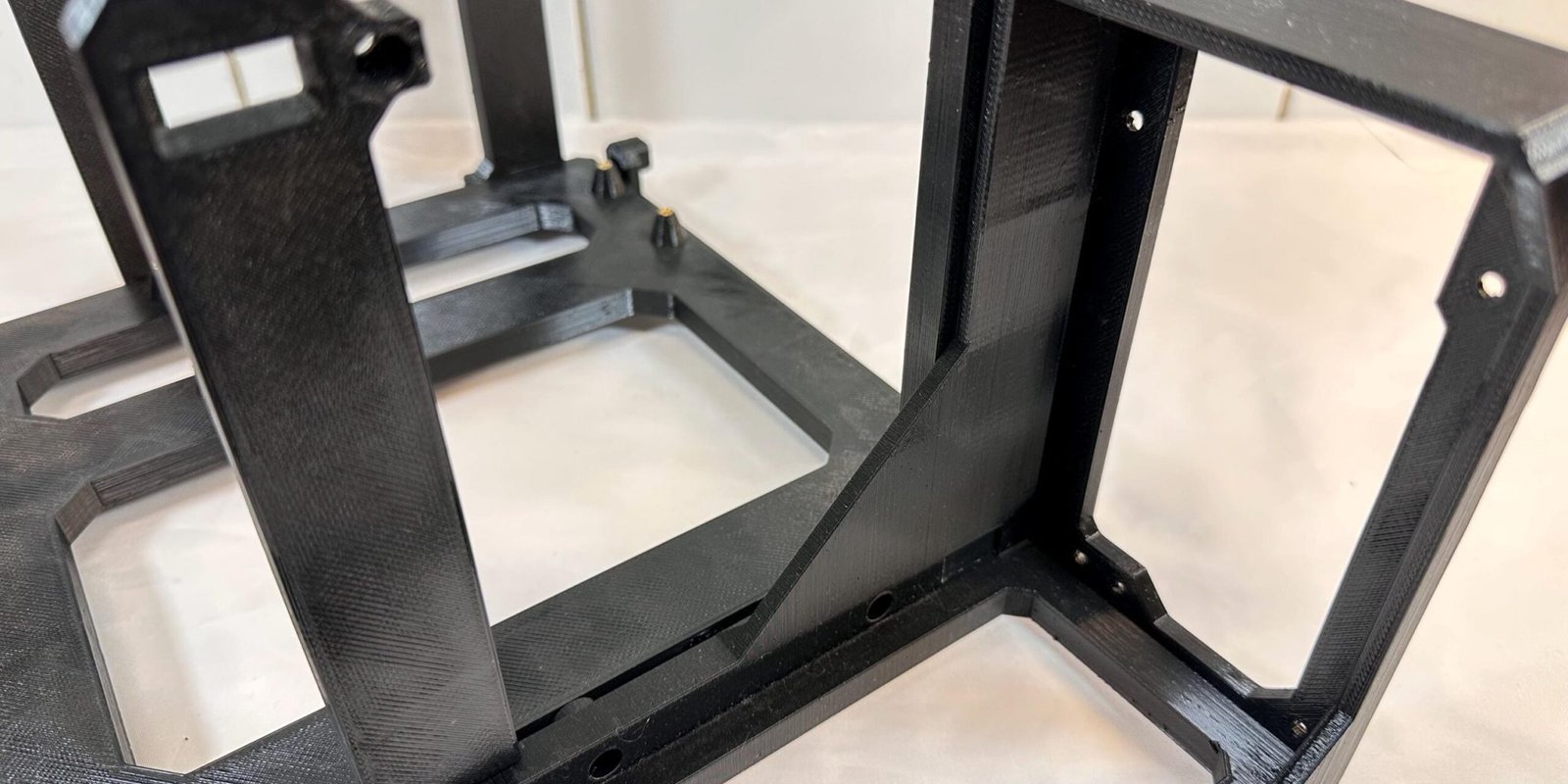
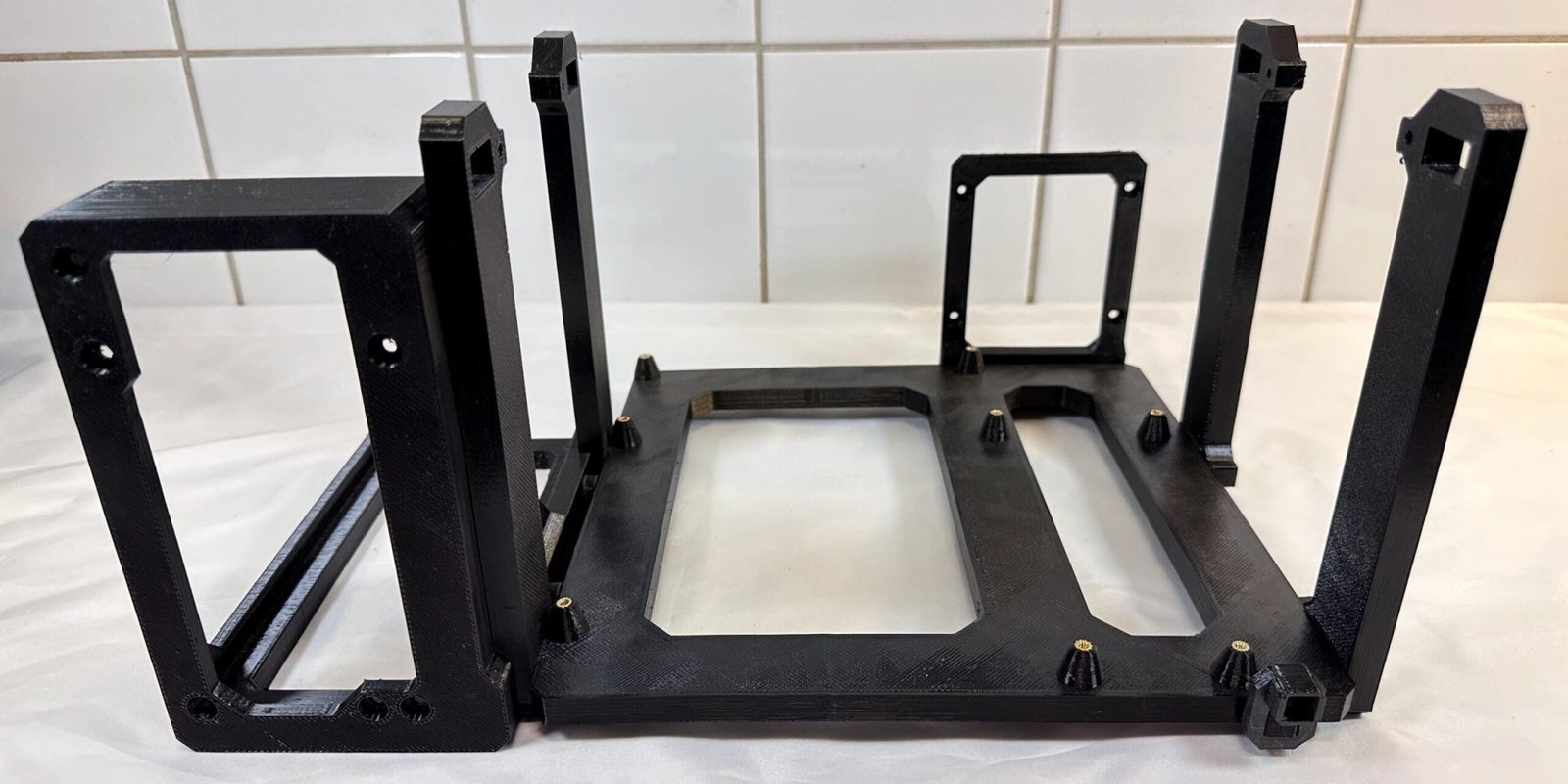
  1. Place and connect each side legs to the motherboard shelf.
  2. Secure the legs with screw holes using M3 screws.
  3. Connect the PSU mount to the PSU side of the motherboard shelf.
  4. Secure it with M3 screws

Hardware used

4x M3 screws

Tip

There are 4x side legs in total:

  • 2x of them has screw holes at both ends, and they are to be installed on the opposite side of the PSU mount.
  • The other 2x legs on the PSU side, have to be installed before the PSU mount. 
  • The PSU side leg with an angled bottom and an insert in it, goes in the front, and the other one in the back of that side.

3

STEP 3

Install the motherboard

Instructions

  1. Secure the motherboard using M3 screws.

Important!

It’s crucial that you cover any of the stand-offs that won’t be used with insulating material before you install the motherboard to the motherboard shelf.

Any stand-offs that isn’t used and not covered properly will most likely cause your motherboard to short out, causing critical damage to it!

Hardware used

9x M3 screws

Tip

Orient the rear I/O ports and PCI-e slots on the motherboards to face towards the front when installing.

4

STEP 4

Assemble & install the GPU shelf

il_fullxfull.7701890230_o0fl.jpg
il_fullxfull.7749830219_59n7.jpg

Instructions

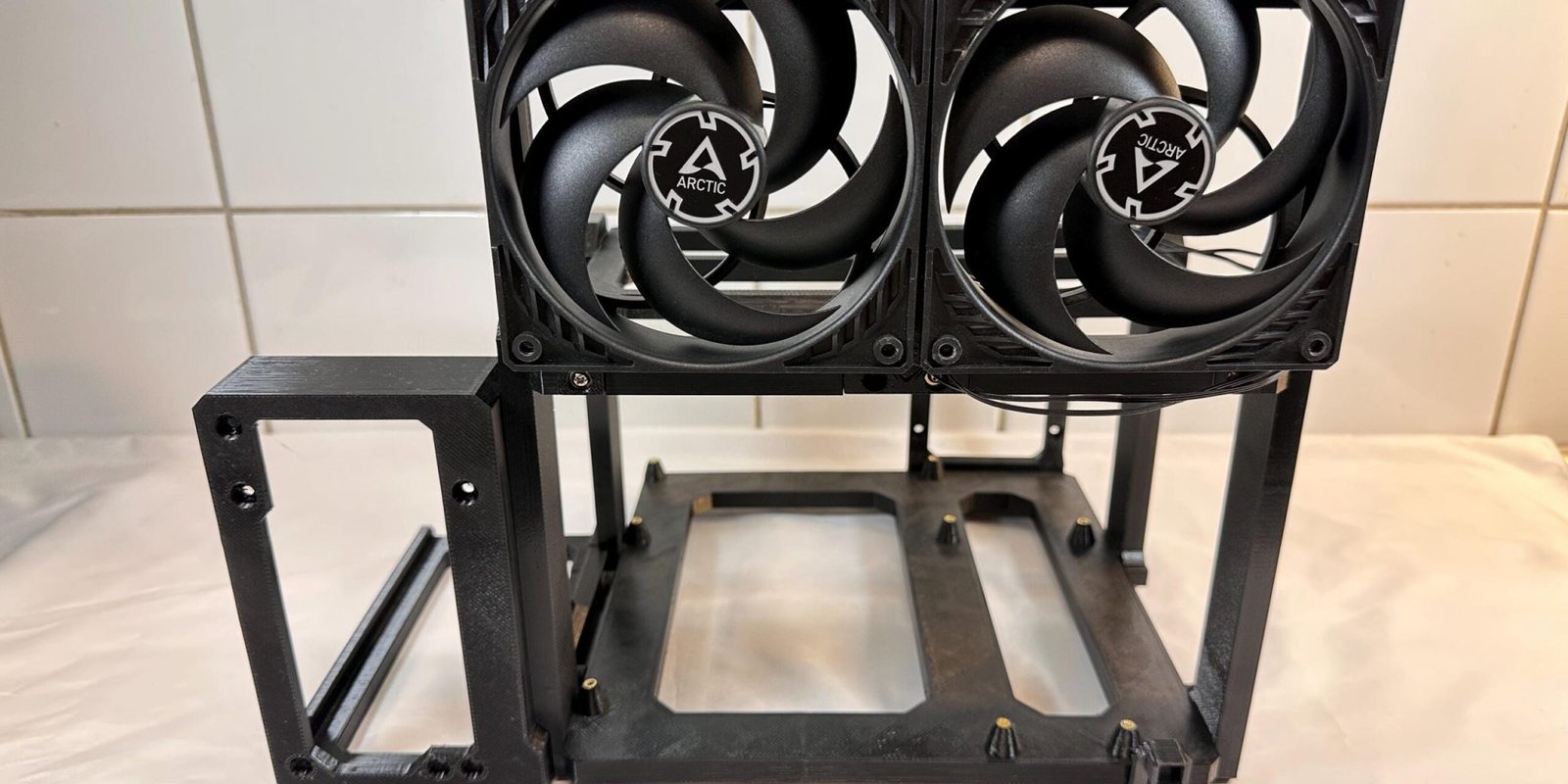
  1. Place the top and bottom parts of the GPU shelf together and secure them with 4x M3 screws from the front.
  2. Insert the assembled GPU shelf into the 4x side legs and secure them shelf using M3 screws.
  3. Secure the PSU mount to the front leg using a M3 screw.

Hardware used

9x M3 screws

Tip

The GPU shelf is comprised of 2 different parts: 1x bottom parts & 1x top parts that are connected and secured with M3 screws.

5

STEP 5

Install PSU & PCI-e risers

il_fullxfull.7749830261_6pu7.jpg
il_fullxfull.7701890262_6v1s.jpg

Instructions

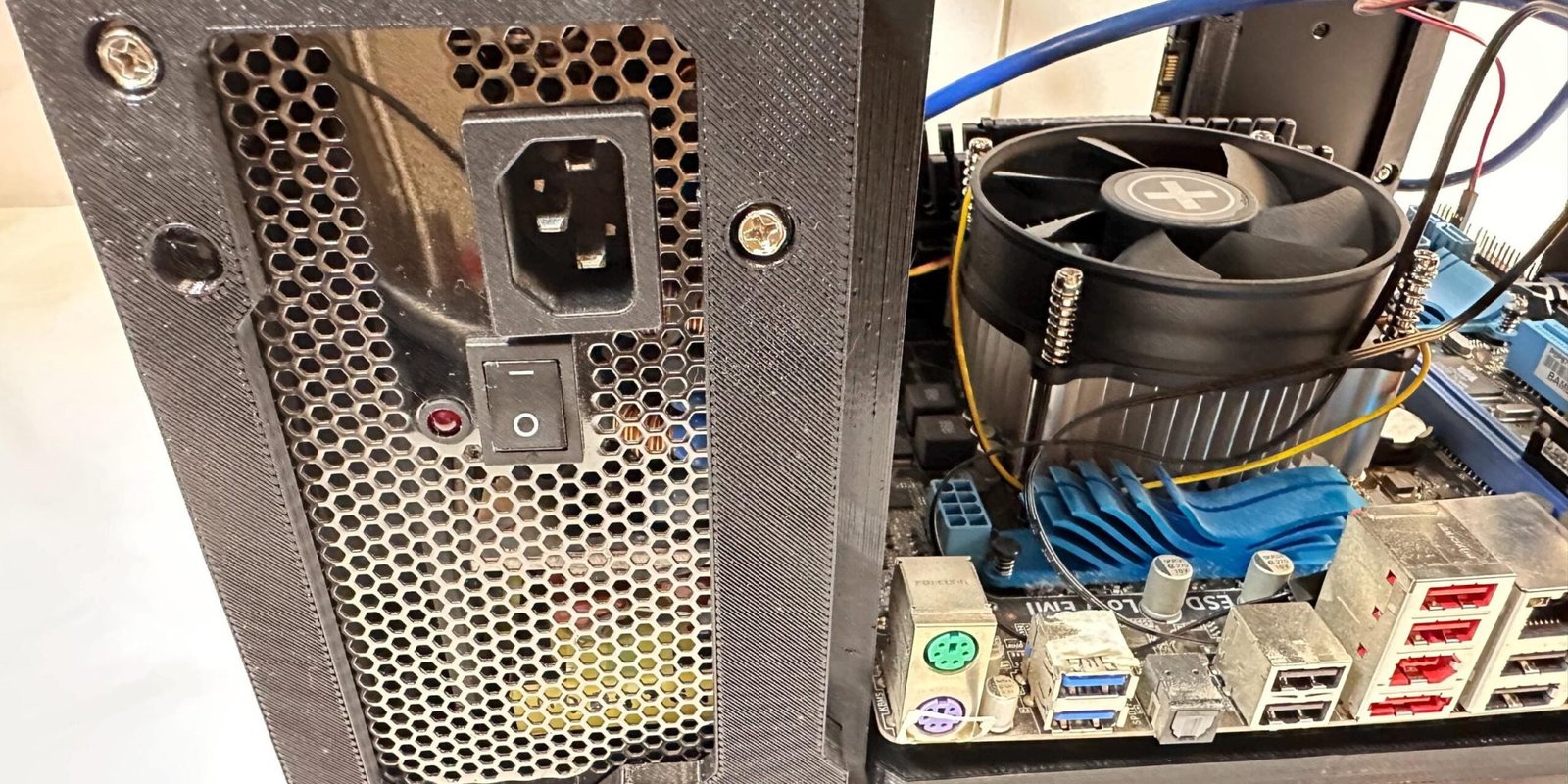
  1. Install your PSU by inserting it into the PSU mount.
  2. Secure it using 4x 6/32 screws.
  3. Route your power cables to the motherboard and to the GPU shelf.
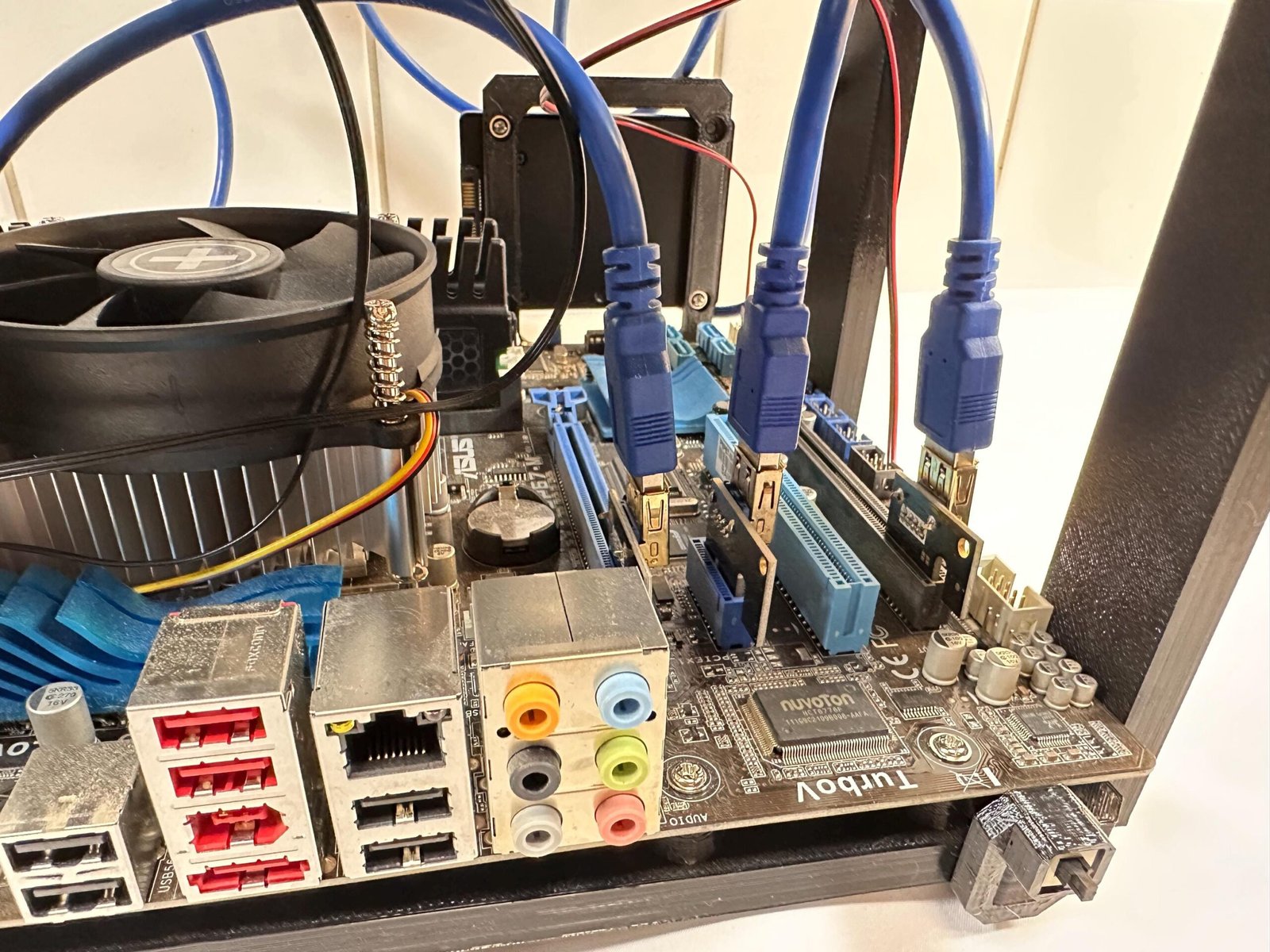
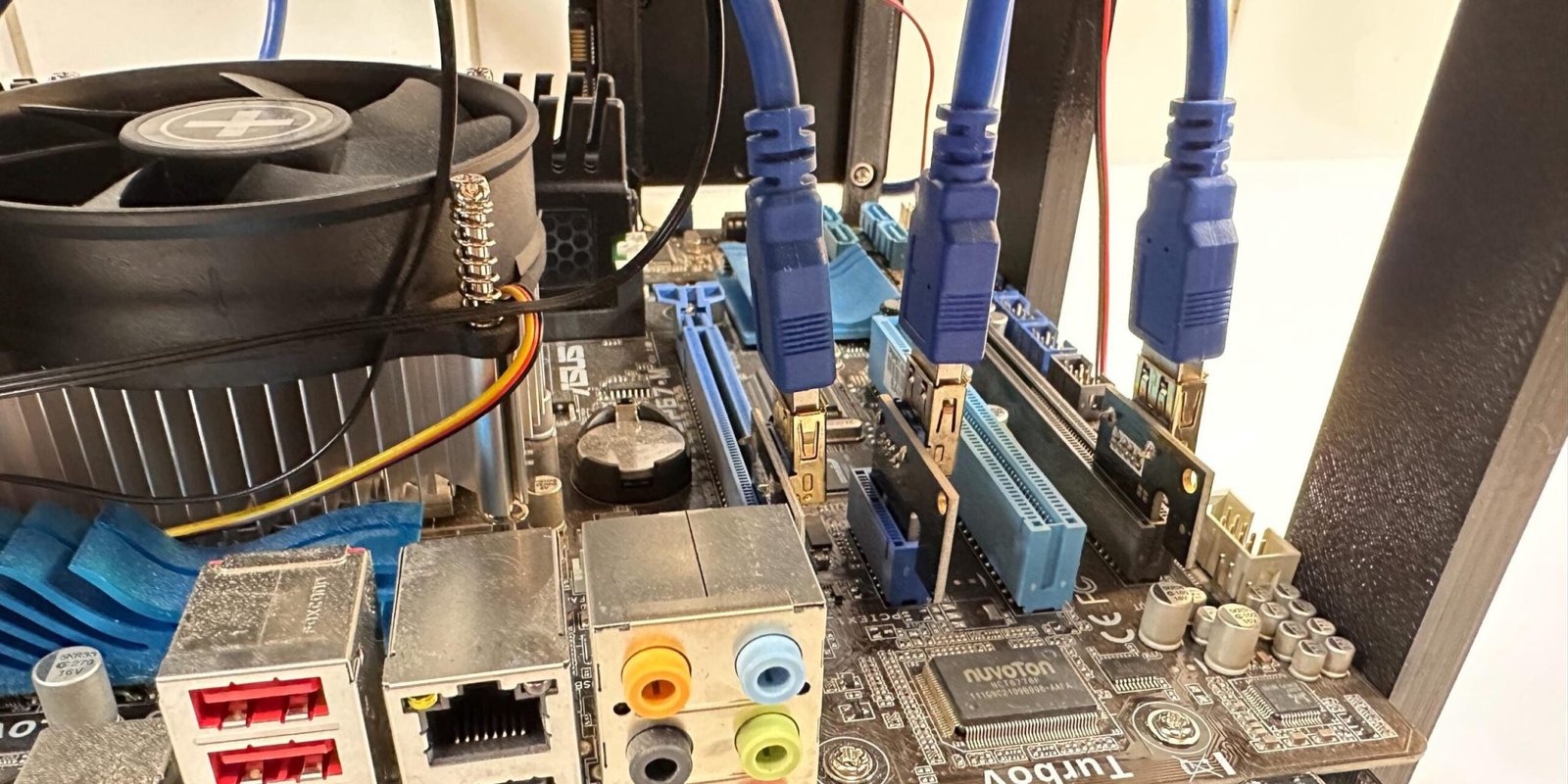
  4. Install your power cables & PCI-e risers to the motherboard.
  5. Route your PCI-e risers through 

Hardware used

4x 6/32 screws

Tip

Make sure to route and clear the remaining power cables from the power supplies and the PCI-e risers before mounting the GPUs.

6

STEP 6

Install GPUs & remaining hardware

il_fullxfull.7749830233_h03h.jpg
il_fullxfull.7749830259_ashy.jpg
il_fullxfull.7701890274_o2mx.jpg
il_fullxfull.7749830263_s7wv.jpg

Instructions

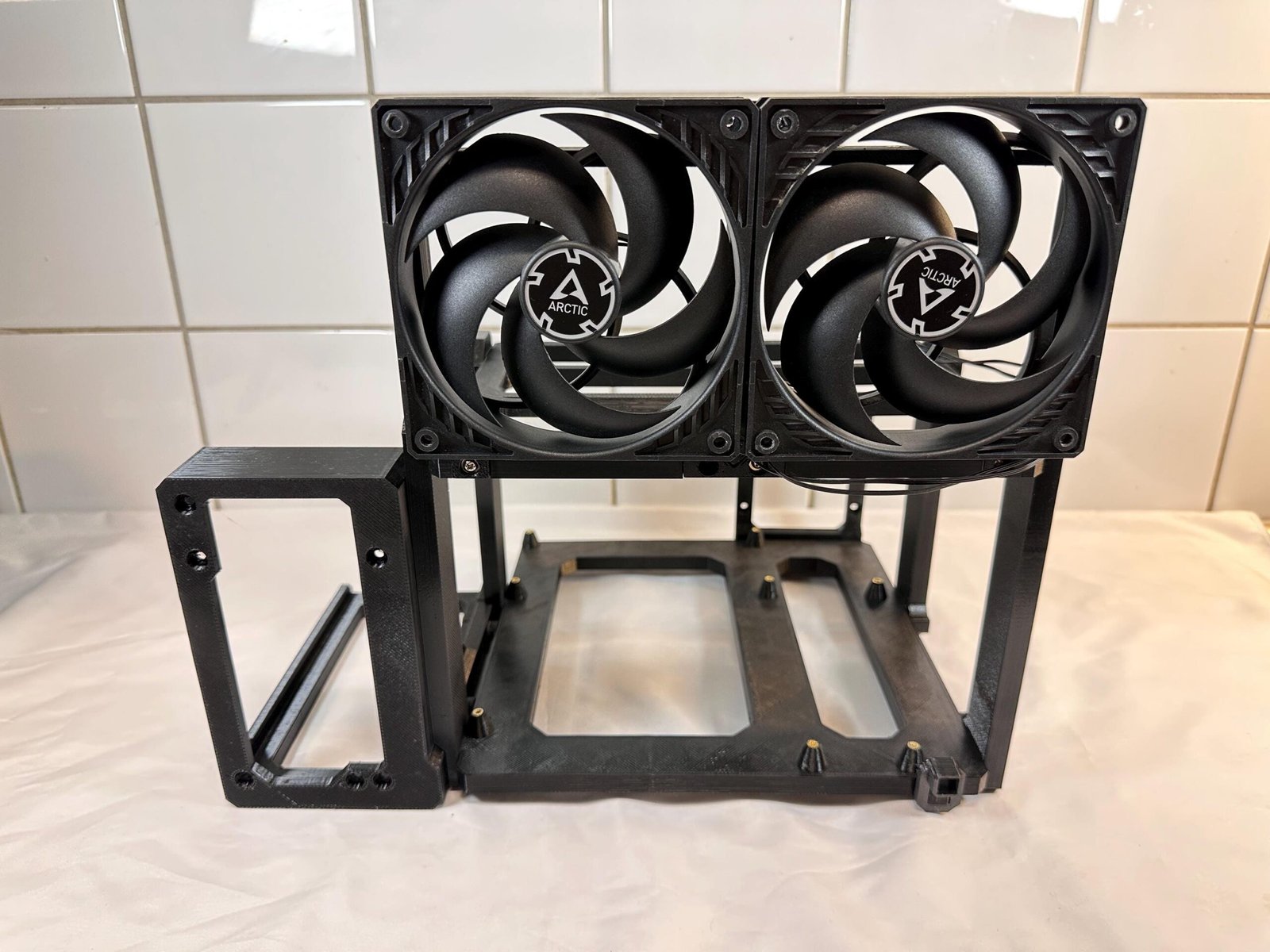
Fans:

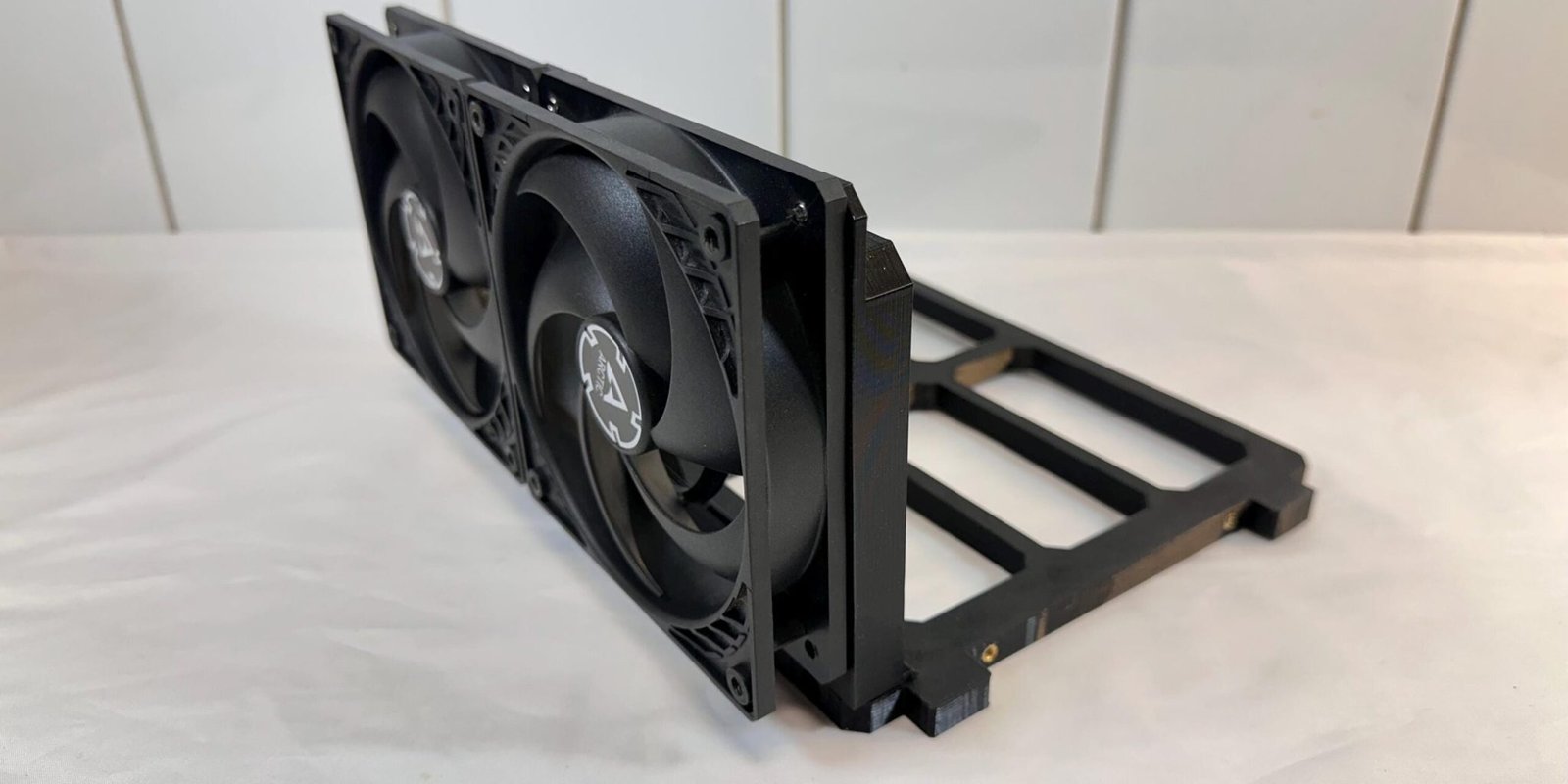
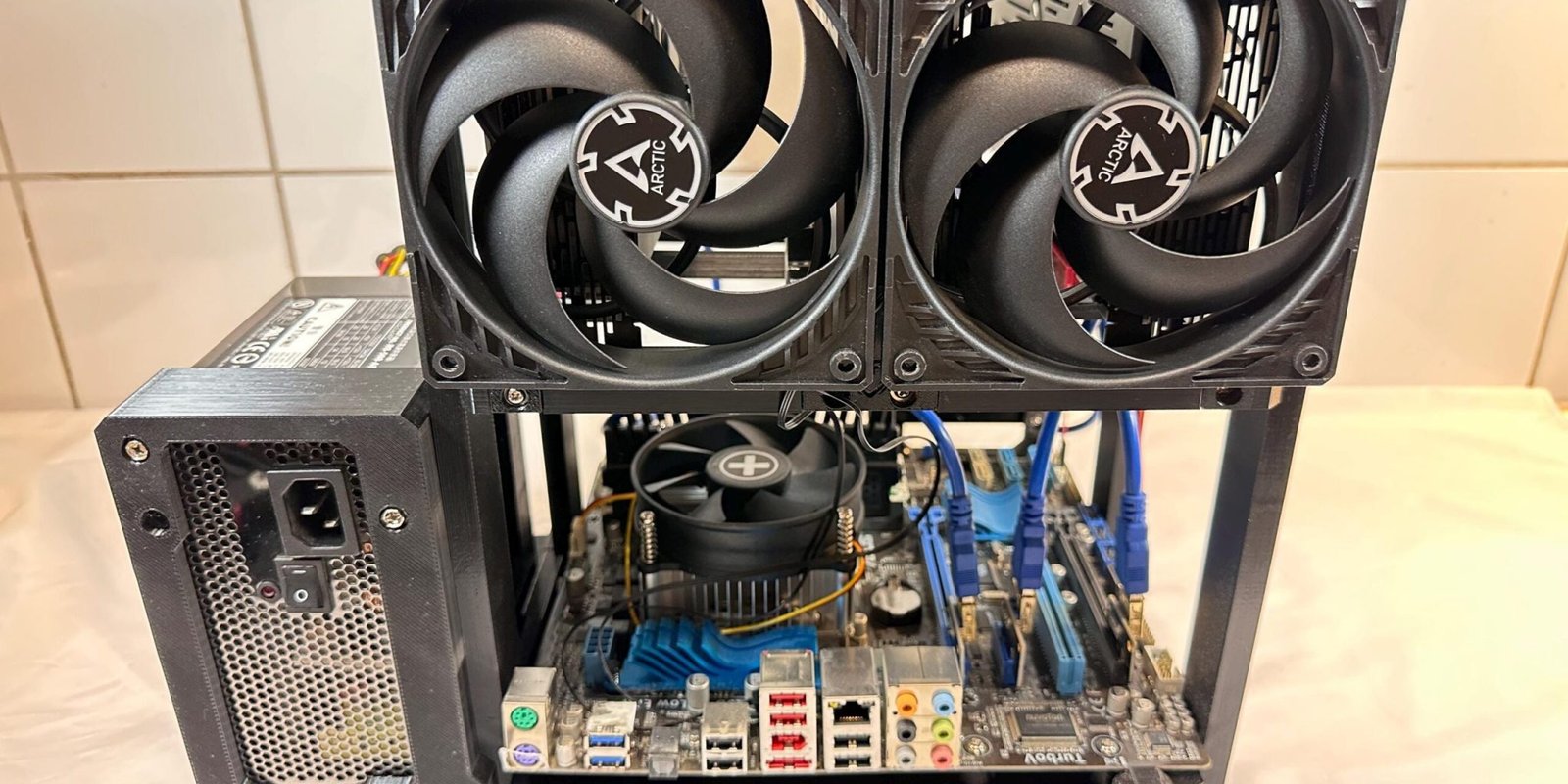
  1. Align each of your 120mm fans to its mounting points on the GPU shelf’s frontside.
  2. Secure each one of them using fan screws from the backside of the GPU shelf.
  3. Route the cables from the fans and connect them to the motherboard.

GPUs:

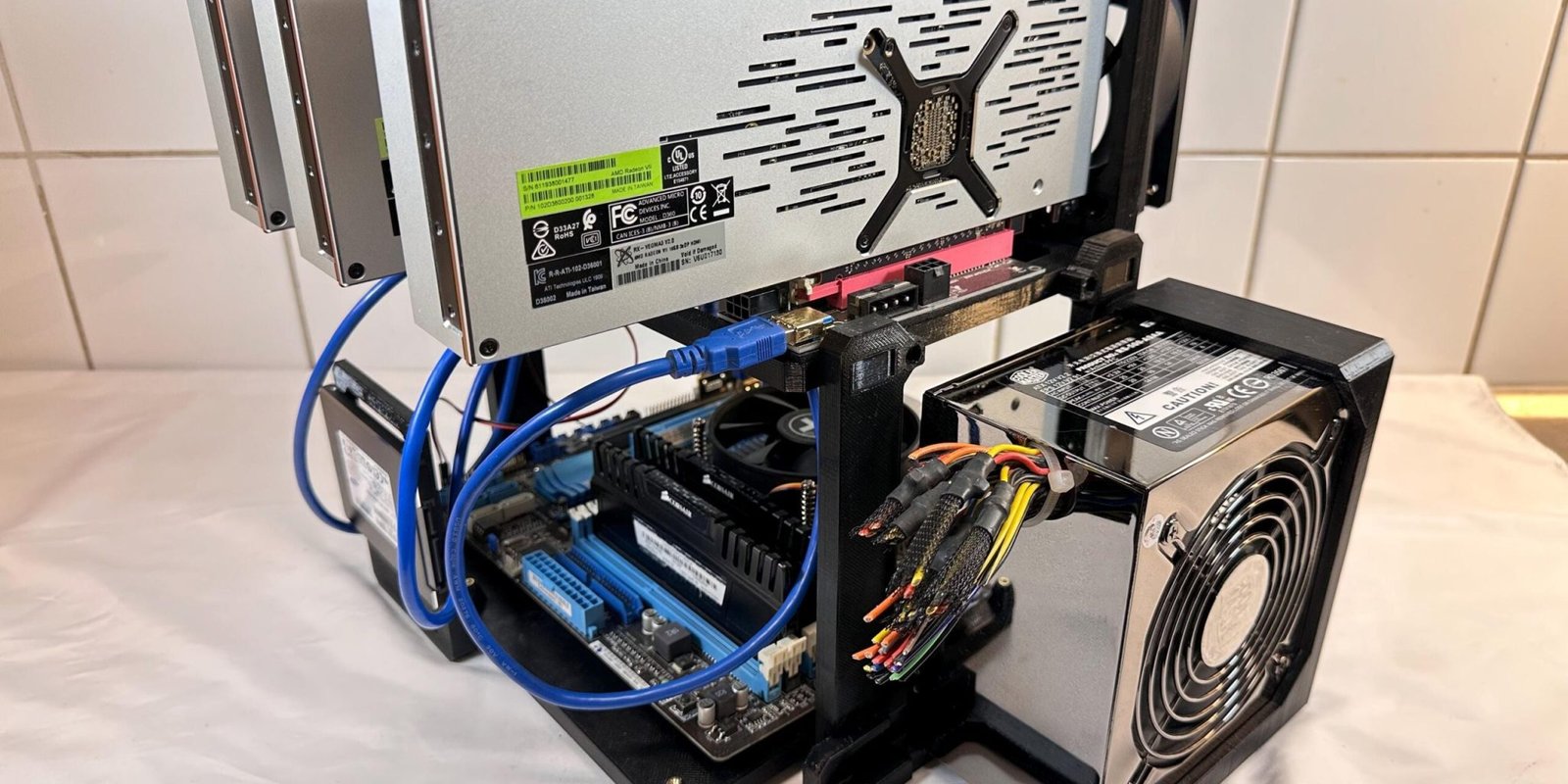
  1. Insert a GPU into each of the risers.
  2. Secure the GPU to the  railing of the GPU shelf using M3 screws.
  3. Connect a power cable into each GPU to power them.

Power switch:

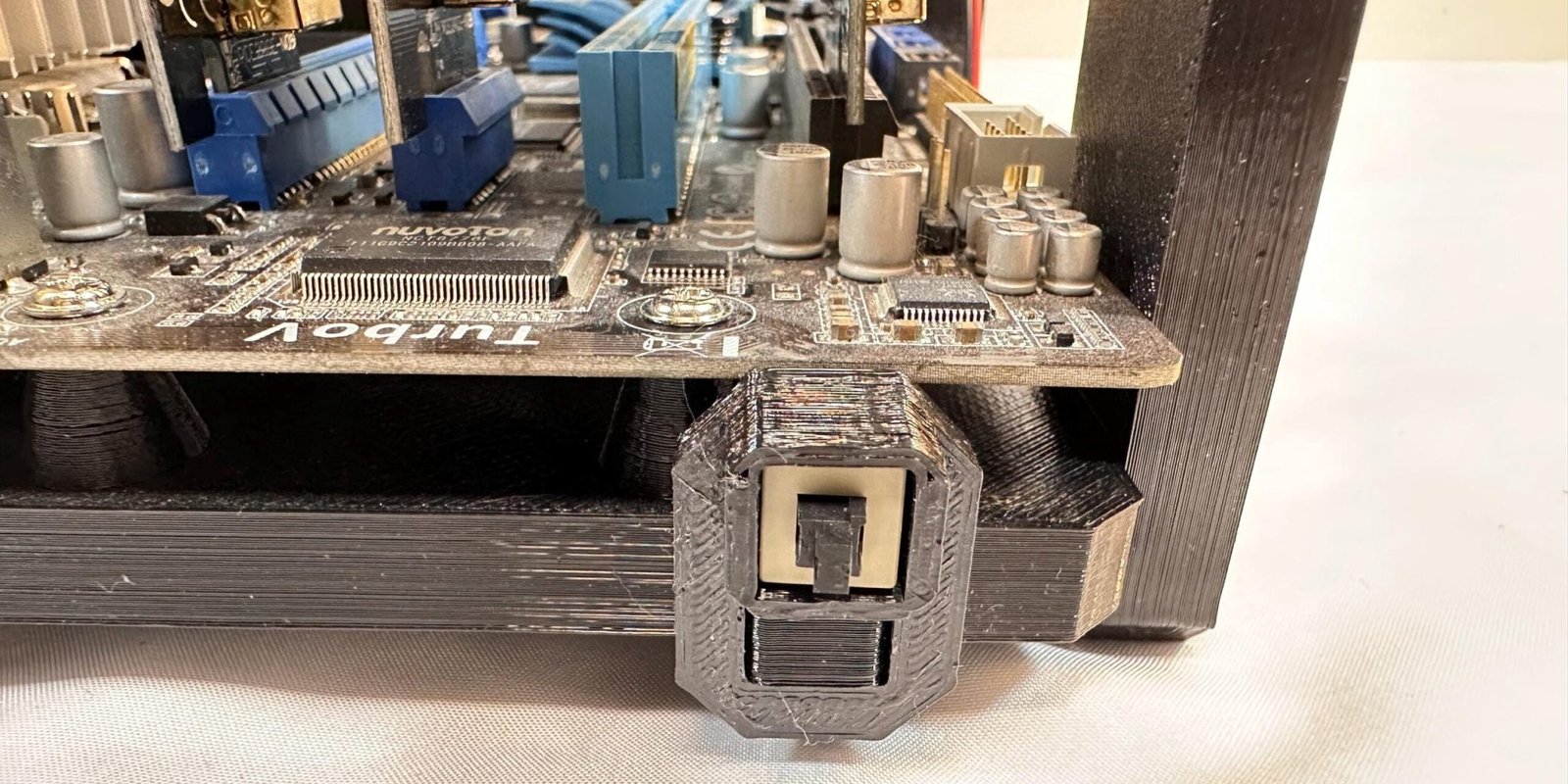
  1. Insert the power switch into the little power switch holder by threading the cable all the way through the holder’s socket.
  2. Clip the holder on to the little attachment at the front of the workbench.
  3. Connect the power switch to the motherboard.

(Optional) SSD:

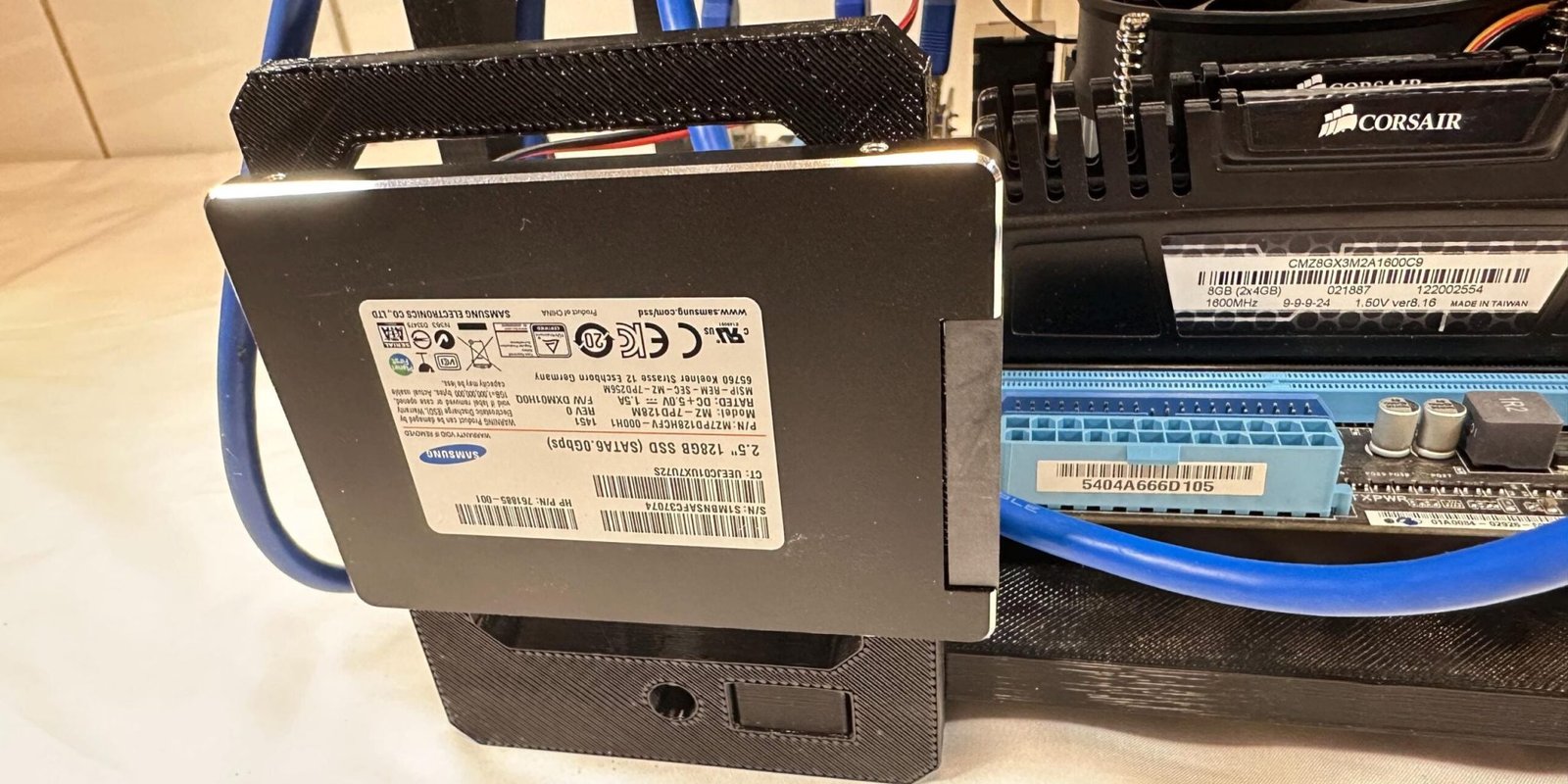
  1. Align the SSD with the screw holes on the SSD holder.
  2. Secure it with M3 screws from the opposite side of the holder.
  3. Mount the holder with the SSD attached to the motherboard shelf.
  4. Secure the assembly with a M3 screw.
  5. Connect the necessary cables to the SSD.

Important!

Fans have to be installed before the GPUs. Otherwise you won’t access the fans’ mounting points later on.

Hardware used

1-11x M3 screws
1-8x Fan screws (not included)

Tip

  • Keep a sufficient distance between each GPU to sustain a healthy amount of airflow to each GPU for cooling them properly.
  • The SSD’s installation point is marked with “SSD” on the motherboard shelf.
FINAL CHECKPOINT

Inspect the complete assembly

  • All frame screws are evenly tightened.
  • PSU & SSD are securely mounted and ventilated.
  • The motherboard and GPUs are fully supported.
  • The power button, GPUs, PSU, SSD & are connected correctly.
  • No cables are touching any fans or sharp edges.
SUPPORT

Need help with your assembly?

Is the instruction wrong or misleading? Perhaps you have a suggestion? We’d be delighted to hear from you regardless!

SUPPORT URL

Contact us using the form at our Contact page.

SUPPORT MAIL

Reach out to us by sending us an email.

Designed to Perform. Built to Impress.